

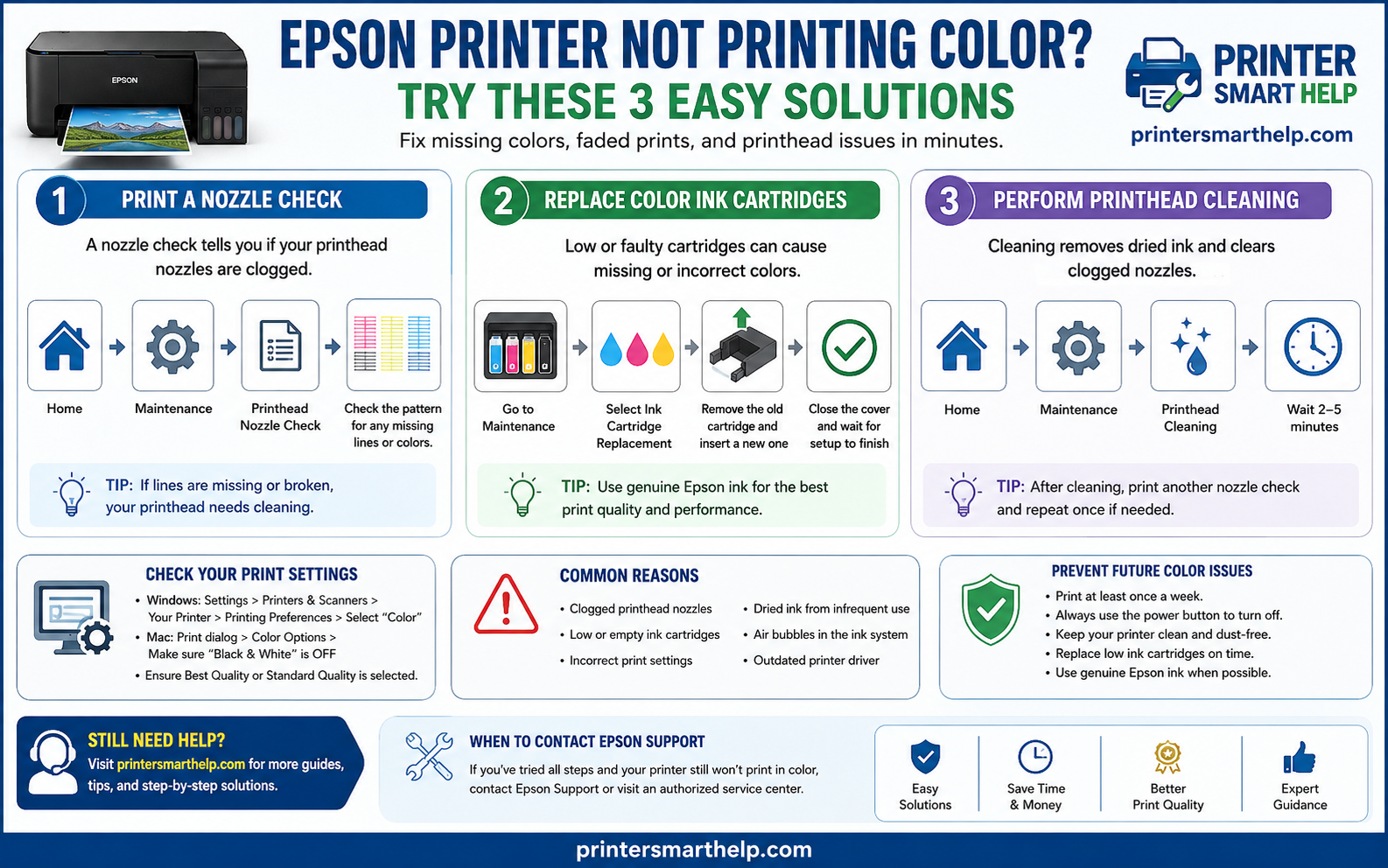
You finally finish designing an important presentation, school project, or family photo collage. You click Print, expecting bright and vibrant colors, but instead your Epson printer produces a page in black and white or prints with missing colors. Blue might be missing, red looks faded, or the entire page appears dull and incomplete.
If you’ve experienced this problem, you’re not alone.
One of the most common issues Epson printer users face is the printer refusing to print in color. Fortunately, this doesn’t usually mean your printer is damaged. In most cases, the problem is caused by clogged printhead nozzles, low ink levels, incorrect printer settings, or cartridges that need attention.
The good news is that you can often fix the issue yourself in just a few minutes without calling a repair technician.
In this guide, we’ll walk through the troubleshooting process in the form of a conversation between a printer user and an experienced technician. This approach makes the steps easier to understand, even if you’ve never repaired a printer before.
Let’s get started
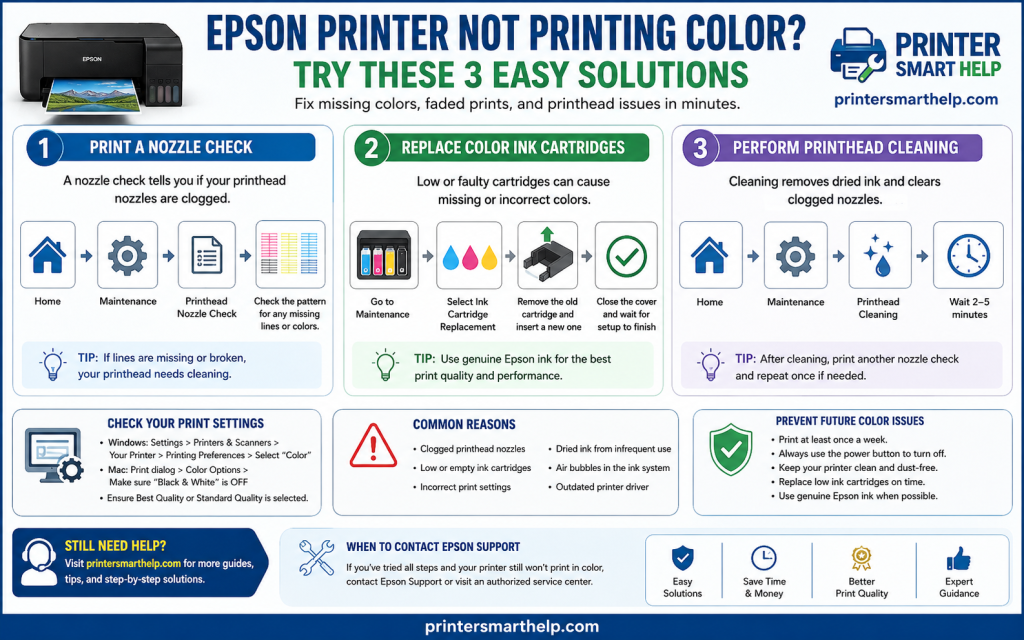
User & Technician Conversation
User:
Hi! I need some help with my Epson printer. It suddenly stopped printing in color. It still prints documents, but everything comes out in black and white, and sometimes one or two colors are completely missing. Do I need to buy a new printer?
Technician:
Not at all. This is one of the most common Epson printer problems, and most of the time it’s easy to fix.
Before spending money on repairs or replacing the printer, let’s check a few simple things. Epson printers include several maintenance tools that can solve color printing problems without needing any special technical knowledge.
We’ll start with the easiest solution and move step by step.
Why Is My Epson Printer Not Printing in Color?
User:
My printer worked perfectly yesterday. Why would it suddenly stop printing colors?
Technician:
There are several possible reasons, but the most common ones include:
- Clogged printhead nozzles
- Low or empty color ink cartridges
- Dried ink inside the printhead
- Incorrect print settings
- Air trapped in the ink system
- Long periods without using the printer
- Poor-quality or expired ink cartridges
Inkjet printers spray tiny droplets of ink through microscopic nozzles. If the printer sits unused for a long time, the ink can dry inside those nozzles, preventing one or more colors from printing correctly.
Fortunately, Epson printers include built-in tools to detect and fix these issues.
Let’s begin with the first method.
Method 1: Print a Nozzle Check Page
User:
I’ve heard of a nozzle check before, but I’m not sure what it actually does.
Technician:
Think of the nozzle check as a health check-up for your printer.
Instead of guessing what’s wrong, the printer prints a small test pattern using every ink color. By looking at the pattern, you can quickly tell whether the printhead is working correctly or if some nozzles are clogged.
It’s always the first test I recommend because it saves both time and ink.
Step 1: Open the Maintenance Menu
On your Epson printer’s control panel, press the Home button if needed.
Navigate to Maintenance and press OK.
You’ll see several maintenance options designed to keep your printer working properly.
Step 2: Select Printhead Nozzle Check
Scroll through the menu until you find Printhead Nozzle Check.
Press OK.
The printer will ask you to load plain A4 paper.
Insert one sheet into the paper tray and press OK again.
The printer will now print a test page.
User:
The page has several colored patterns on it. What am I supposed to look for?
Technician:
Take a close look at each color pattern.
You should see clean, solid lines for:
- Black
- Cyan
- Magenta
- Yellow
If every line is complete and evenly printed, your printhead is working correctly.
However, if you notice broken lines, faded sections, or missing colors, that’s a clear sign that some nozzles are clogged.
For example, if the cyan pattern has several gaps while the other colors look fine, the cyan nozzle needs cleaning.
The nozzle check helps you identify the exact problem instead of replacing ink cartridges unnecessarily.
Step 3: Start Automatic Printhead Cleaning
If the nozzle check page shows missing or broken lines, the printer will usually ask whether you’d like to clean the printhead.
Press the X button if instructed, then press OK to continue.
Confirm your selection by pressing OK once again.
The printer will automatically begin cleaning the printhead.
During this process, fresh ink is pushed through the nozzles to remove dried ink and small blockages.
User:
How long should I wait?
Technician:
The cleaning process usually takes two or three minutes.
While it’s running, avoid opening the printer cover or turning off the printer.
Interrupting the cleaning cycle can cause additional problems and may require repeating the process.
Once the cleaning finishes, print another nozzle check page.
If the missing lines have disappeared, your printer is ready to use again.
Why This Step Is So Important
Many people immediately replace their ink cartridges when they notice color printing problems.
In reality, the cartridges are often completely fine.
The actual problem is dried ink blocking the printhead nozzles.
Running a nozzle check first helps you avoid unnecessary expenses and allows you to diagnose the problem accurately.
It’s one of the simplest maintenance tasks you can perform, yet it solves a large percentage of color printing issues.
Method 2: Replace the Color Ink Cartridges
User:
I cleaned the printhead, but one of the colors is still missing. What should I try next?
Technician:
The next step is to inspect the color ink cartridges.
Even if your printer doesn’t display a low-ink warning, one of the cartridges could be empty, damaged, or not installed properly.
Replacing a faulty cartridge often restores normal color printing immediately.
Step 1: Go Back to Maintenance
Return to the printer’s Maintenance menu.
Use the arrow buttons to scroll until you see Ink Cartridge Replacement.
Press OK.
Step 2: Prepare for Replacement
The printer will display a confirmation message.
Press OK again.
The cartridge holder will automatically move into the replacement position.
Wait until it stops moving completely before opening the printer cover.
Never try to move the cartridge holder by hand because it can damage the mechanism.
Step 3: Remove the Old Cartridge
Lift the printer cover carefully.
Locate the cartridge that needs replacing.
Press the release tab gently and remove the cartridge by lifting it straight up.
If you’re replacing multiple color cartridges, remove them one at a time so you don’t accidentally install them in the wrong slots.
Step 4: Install the New Cartridge
Before inserting the new cartridge, remove all protective packaging and sealing tape.
Insert it into the correct color slot and press down gently until you hear a click.
Avoid touching the copper contacts or the ink outlet, as fingerprints or dirt can interfere with proper operation.
Once all cartridges are installed, close the printer cover securely.
The printer will automatically recognize the new cartridges and prepare the ink system.
User:
Can I use compatible cartridges instead of genuine Epson cartridges?
Technician:
Many compatible cartridges work well, but quality varies from one manufacturer to another.
If you’re experiencing color problems after installing third-party cartridges, try reinstalling them or testing with genuine Epson cartridges.
Original Epson cartridges are designed specifically for Epson printers and usually provide the best print quality, accurate ink level monitoring, and reliable performance.
What Happens Next?
If replacing the cartridges solves the problem, you’re all set.
However, if your Epson printer still isn’t printing colors correctly, don’t worry. There are still a few more things we can try.
If replacing the color cartridges didn’t solve the problem, don’t worry just yet. There are still a few important troubleshooting steps you can try before assuming your Epson printer needs professional repair.
In this section, we’ll continue our conversation and cover printhead cleaning, printer settings, driver updates, maintenance tips, and answers to the most common questions users ask.
Method 3: Perform a Printhead Cleaning
User:
I replaced the color cartridges, but my Epson printer is still printing faded colors. Some colors are better now, but they’re still not perfect.
Technician:
That’s actually a good sign.
It usually means the printer is receiving ink, but the printhead still has partially clogged nozzles. This is where Printhead Cleaning comes in.
Unlike a nozzle check, which only tests the printhead, the cleaning function forces ink through the tiny nozzles to clear dried ink and improve print quality.
Let’s do that now.
Step 1: Open the Maintenance Menu
On your Epson printer’s control panel, press Home if necessary and navigate to Maintenance.
Press OK to open the maintenance options.
Scroll until you see Printhead Cleaning.
Press OK.
Step 2: Start the Cleaning Process
The printer will ask you to confirm.
Press OK once more.
Your Epson printer will now begin cleaning the printhead.
During this process, you’ll hear the printer making mechanical sounds as it pushes ink through the printhead.
This is completely normal.
The cleaning cycle usually takes between two and five minutes depending on your printer model.
User:
Can I use the printer while it’s cleaning?
Technician:
No.
It’s important to let the cleaning cycle finish completely.
Don’t switch off the printer, unplug the power cable, or open the printer cover while cleaning is in progress.
Interrupting the cleaning cycle may leave air inside the ink system or prevent the cleaning process from completing successfully.
Once the cleaning finishes, the printer will return to the Home screen.
Step 3: Print Another Nozzle Check
After cleaning the printhead, select Check or go back to Printhead Nozzle Check and print another test page.
Compare the new pattern with the previous one.
If the missing lines have disappeared and all four colors print evenly, congratulations! Your printer is working properly again.
If you still notice missing lines, repeat the cleaning process one more time.
However, avoid running the cleaning cycle repeatedly because each cleaning uses a noticeable amount of ink.
If there is no improvement after two or three cleaning cycles, the problem is probably not caused by a simple clog.
Additional Troubleshooting Steps
User:
I’ve completed all three methods, but my Epson printer still isn’t printing color properly. Is there anything else I can try?
Technician:
Absolutely. Before considering a repair, there are a few additional checks that often solve the problem.
Check Your Print Settings
Many people spend hours cleaning their printer when the real problem is simply an incorrect print setting.
If Grayscale, Black & White, or Monochrome printing is enabled, your printer will ignore the color cartridges even if they’re full.
On Windows
Open Settings and go to Bluetooth & Devices.
Select Printers & Scanners, then choose your Epson printer.
Click Printing Preferences and look for the Color option.
If Print in Grayscale is checked, uncheck it.
Choose Color Printing, save the settings, and print a test page.
On macOS
Open System Settings and select Printers & Scanners.
Choose your Epson printer and print a document.
In the print dialog, expand the available settings and make sure Black & White is disabled.
Select Color before printing.
Many users accidentally switch to grayscale for one document and forget to change it back.
Check Ink Levels
User:
My printer isn’t showing a low-ink warning. Could ink still be the problem?
Technician:
Yes.
Sometimes a cartridge contains a very small amount of ink—enough that the printer doesn’t display a warning, but not enough to produce high-quality color prints.
Open your printer’s maintenance menu or the Epson Smart Panel app and check the ink levels.
If any color is running low, replace it before continuing.
Restart the Printer
A simple restart can clear temporary communication errors.
Turn off the printer using the power button.
Unplug the power cable.
Wait for about one minute.
Reconnect the power cable and turn the printer back on.
Now print another color document.
It may sound simple, but many temporary software issues disappear after a proper restart.
Update the Printer Driver
User:
Could my computer be causing the problem instead of the printer?
Technician:
Yes.
If the problem started after updating Windows or macOS, the printer driver might be outdated or corrupted.
Visit Epson’s official support website and download the latest driver for your printer model.
Installing the newest driver often fixes communication issues between the operating system and the printer.
After installing the driver, restart your computer and test the printer again.
Keep Your Epson Printer Healthy
One of the best ways to avoid future color printing problems is regular maintenance.
Many users only use their printer once every few months. During that time, ink can dry inside the printhead and clog the nozzles.
To keep your printer in excellent condition:
- Print at least one color page every week.
- Always turn off the printer using the power button instead of unplugging it.
- Store ink cartridges in a cool and dry place.
- Replace empty cartridges promptly.
- Keep the printer clean and free from dust.
- Use genuine Epson ink whenever possible.
- Run a nozzle check if you notice faded colors before the problem becomes worse.
These simple habits can extend the life of your printer and reduce maintenance costs.
Frequently Asked Questions (FAQs)
1. Why is my Epson printer only printing black ink?
This usually happens because of clogged printhead nozzles, empty color cartridges, or grayscale printing being enabled in the printer settings.
2. Why are some colors missing?
A missing color often indicates that the corresponding nozzle is clogged or the ink cartridge is empty or faulty.
3. How many times should I clean the printhead?
Run the cleaning cycle once and print a nozzle check. If necessary, repeat it one or two more times. Avoid excessive cleaning because it consumes ink.
4. Can old ink cartridges cause color problems?
Yes. Expired or dried-out cartridges can reduce print quality and sometimes clog the printhead.
5. Should I use genuine Epson cartridges?
Genuine Epson cartridges generally provide better print quality and compatibility, although high-quality compatible cartridges may also work well.
6. Why does my Epson printer print faded colors?
Faded colors may be caused by low ink levels, clogged printhead nozzles, poor print quality settings, or old cartridges.
7. Can I clean the printhead manually?
Manual cleaning is possible, but it should only be performed if you’re experienced because improper cleaning can damage the printhead.
8. Does Printhead Cleaning use ink?
Yes. Each cleaning cycle uses ink to flush the nozzles, so avoid running it repeatedly unless necessary.
9. How often should I print to prevent clogged nozzles?
Printing one color page every week helps keep the ink flowing and reduces the chance of clogged nozzles.
10. What should I try first if my Epson printer stops printing color?
Always start with a Printhead Nozzle Check. It quickly identifies whether the problem is caused by clogged nozzles before you replace ink cartridges.
Final Thoughts
An Epson printer that refuses to print in color can be frustrating, especially when you need important documents or photos. Fortunately, the majority of color printing problems can be solved without replacing the printer.
Start by printing a Nozzle Check Page to identify clogged nozzles. If necessary, replace the color ink cartridges with fresh ones and run a Printhead Cleaning cycle. These three methods resolve most Epson color printing issues and are recommended by Epson as the first line of troubleshooting.
If the problem continues, don’t overlook the basics. Check your printer settings, verify ink levels, restart the printer, and update the printer driver. Small software or configuration issues can sometimes prevent color printing even when the hardware is working perfectly.
Finally, make printer maintenance a regular habit. Printing a color page once a week, using quality ink, and performing occasional nozzle checks can help prevent future problems and keep your Epson printer producing sharp, vibrant prints for years to come.
We hope this guide helped you restore color printing on your Epson printer. If you’re still experiencing issues, leave your Epson printer model number in the comments, and we’ll do our best to help you find the right solution.