

Is your Brother printer not printing even though it appears to be connected to your computer? You may see documents stuck in the print queue, nothing may happen when you click Print, or your computer may show the printer as unavailable.
In many cases, the problem is caused by a connection issue or a stuck print job. The good news is that you can often fix it without reinstalling the printer.
In this guide, we’ll show you 2 quick solutions to fix a Brother printer that is not printing, including how to check the connection, clear the print queue, and restart your computer.
Note: Windows menus can look slightly different depending on your Windows version and updates. The steps below are primarily for Windows 11.
Why Is My Brother Printer Not Printing?
A Brother printer may stop printing for several simple reasons, including:
- The USB cable is loose or disconnected.
- The printer and computer are connected to different Wi-Fi networks.
- A wireless connection has been interrupted.
- A Bluetooth connection is not active on a supported Brother model.
- A document is stuck in the print queue.
- Windows is temporarily having trouble communicating with the printer.
- The printer is showing an error such as a paper jam or low ink/toner.
- The printer or computer needs to be restarted.
Brother’s own troubleshooting guidance recommends checking the printer connection, clearing remaining print jobs, checking for printer errors, and restarting the printer or computer when appropriate.
Solution 1: Check the Brother Printer Connection
The first thing to check is the connection between your Brother printer and your computer.
Depending on your printer model, you may be using a USB, Wi-Fi, Ethernet, or Bluetooth connection.
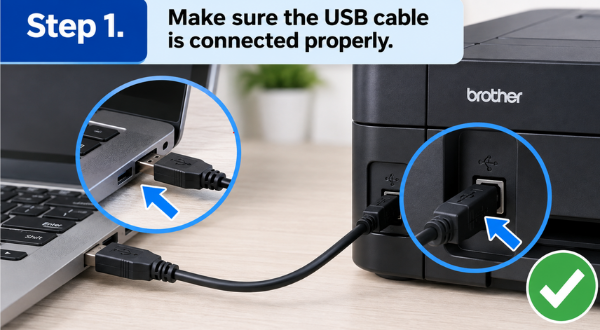
Step 1. Make Sure the USB Cable Is Connected Properly
If you are using your Brother printer with a USB cable, check both ends of the cable.
Make sure one end is firmly connected to the printer and the other end is connected directly to the computer.
If possible, avoid using a USB hub or adapter while troubleshooting. Brother recommends connecting the USB cable directly to the computer when checking a USB printing problem.
You can try these quick checks:
- Turn off the Brother printer.
- Disconnect the USB cable.
- Check both USB connectors for visible damage.
- Reconnect the cable firmly.
- Turn the printer back on.
- Try printing again.
If the printer still does not print, try another USB port on your computer. If you have another compatible USB printer cable available, you can also test with that cable.
Important
A USB connection does not require your printer and computer to be on the same Wi-Fi network. If you are using USB, focus on making sure the cable and printer connection are working properly.
Step 2. Make Sure Your Printer and Computer Are on the Same Network
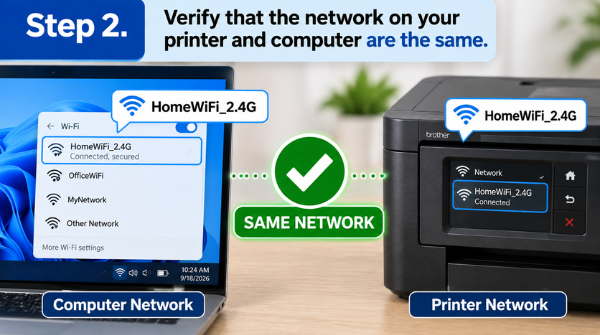
If your Brother printer uses Wi-Fi, check the network connection on both devices.
Your printer and computer should normally be connected to the same local network for wireless printing.
For example, if your computer is connected to:
HomeWiFi
but your Brother printer is connected to:
HomeWiFi-Guest
the computer may not be able to communicate with the printer normally.
Check the Wi-Fi name shown on your computer and compare it with the network configured on the printer.
Brother specifically recommends configuring the wireless computer and Brother machine with the same SSID as the wireless router or access point.
If your printer recently stopped working
A router restart can sometimes help restore communication between the printer and computer. You can also restart the printer and allow it some time to reconnect to the network.
If your printer has a display, check whether it shows an error or a disconnected network status.
Step 3. Check the Bluetooth Connection
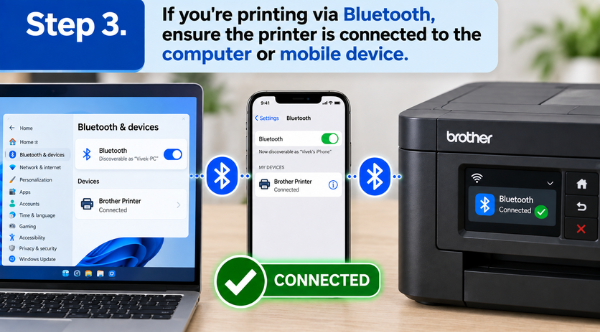
If you are printing through Bluetooth, make sure Bluetooth is turned on and that the printer is actually paired with your computer or mobile device.
However, Bluetooth printing is model-dependent. Not every Brother printer supports Bluetooth printing. Brother provides Bluetooth connection instructions for supported models such as certain PJ, QL, RJ, TD, and TJ series printers.
If your Brother model supports Bluetooth:
- Turn on Bluetooth on your computer or mobile device.
- Make sure the Brother printer is powered on.
- Open the Bluetooth settings.
- Look for your Brother printer.
- Confirm that it is paired or connected.
- Try printing again.
If the printer is no longer connected, you may need to pair it again according to the instructions for your specific Brother model.
Solution 2: Cancel the Print Job and Restart the Computer
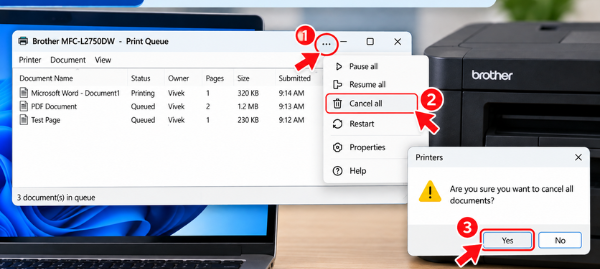
If your Brother printer is connected but still refuses to print, a stuck document in the Windows print queue may be causing the problem.
Windows allows you to view the printer queue and cancel pending print jobs.
Follow these steps.
Step 1. Go to Settings and Open Bluetooth & Other Devices
On Windows 11:
- Click Start.
- Open Settings.
- Select Bluetooth & devices.
This section contains settings for connected devices, including printers and scanners.
Step 2. Click Printers & Scanners, Then Click Your Printer
Inside Bluetooth & devices, select:
Printers & scanners
You should see a list of printers installed on your computer.
Find your Brother printer and click it to open its settings.
If you have multiple printers installed, make sure you select the correct Brother printer.
Step 3. Click Open Print Queue
After selecting your Brother printer, look for:
Open print queue
Click this option.
A new window will show documents that are waiting to print.
If you see several documents listed, one of them may be stuck and preventing newer print jobs from processing. Microsoft confirms that Windows 11 provides the Open print queue option from the printer’s settings.
Step 4. Cancel All Pending Print Jobs
In the print queue, click the three dots menu.
Then select:
Cancel all
If Windows asks you to confirm, click Yes.
This removes pending documents from the printer queue.
Brother’s Windows 11 troubleshooting instructions also recommend going to Printers & scanners, selecting the Brother machine, opening the print queue, and choosing Cancel all to delete remaining print jobs.
Why should you clear the queue?
Imagine sending five documents to the printer. If the first document becomes stuck because of a connection or printing error, the other documents may remain behind it.
Clearing the queue gives Windows a clean starting point.
Step 5. Turn Off Your Computer, Then Restart It
After canceling all pending print jobs, turn off your computer and then restart it.
Once Windows starts again:
- Turn on your Brother printer if it is not already on.
- Wait for the printer to become ready.
- Make sure it is connected by USB, Wi-Fi, Ethernet, or supported Bluetooth.
- Open the document you want to print.
- Select your Brother printer.
- Send a new print job.
Microsoft also recommends restarting the PC as part of printer troubleshooting because restarting can refresh the services and components responsible for communication with the printer.
Still Can’t Print? Try These Additional Checks
If the two solutions above did not fix the problem, don’t immediately assume that the printer is broken. There are a few more things worth checking.
Check the Printer for Error Messages
Look at the printer’s display or indicator lights.
Your Brother printer may refuse to print if it has an issue such as:
- Paper jam
- No paper
- Low or empty ink
- Empty toner
- Cover open
- Cartridge or toner problem
- Network error
- Other printer-specific error
Brother recommends checking the printer display or LED indicators for errors before continuing with connection troubleshooting.
Resolve the displayed error first and then try printing again.
Make Sure You Selected the Correct Printer
If you have more than one printer installed, Windows or the application you’re using may be sending the document to a different printer.
Before clicking Print, check the printer selected in the print dialog.
Make sure it is your Brother printer.
You can also check the installed printers under:
Settings → Bluetooth & devices → Printers & scanners
Restart the Print Spooler
If documents continue getting stuck in the queue, Windows’ Print Spooler service may need to be restarted.
The Print Spooler manages print jobs in Windows. Microsoft recommends restarting this service when printing suddenly stops or jobs remain stuck.
How to restart Print Spooler
- Press Windows + R on your keyboard.
- Type services.msc.
- Press Enter.
- Find Print Spooler in the list.
- Right-click Print Spooler.
- Select Restart.
- Close the Services window.
- Try printing again.
This is especially useful when clearing the print queue alone does not solve the problem.
What If the Brother Printer Shows as Offline?
If Windows shows your Brother printer as Offline, start by checking the physical or wireless connection.
For a USB printer, make sure the cable is securely connected.
For a wireless printer, confirm that the printer is connected to the correct Wi-Fi network.
Brother recommends checking the printer’s connection and, for wireless models, confirming that the computer and printer are using the same network/SSID.
You should also check whether the printer itself displays an error.
If the printer was recently moved, the Wi-Fi router was replaced, or the wireless password changed, the printer may need to be connected to the network again.
What If the Brother Printer Is Connected but Still Won’t Print?
If your Brother printer appears connected but refuses to print, try this order:
1. Check the printer for errors.
Make sure there is no paper jam, empty cartridge or toner warning, or other error.
2. Check the connection.
Verify the USB cable or wireless connection.
3. Check the network.
For Wi-Fi printing, make sure the printer and computer are on the same network.
4. Clear the print queue.
Cancel all pending documents.
5. Restart the computer.
This can refresh Windows printing components.
6. Restart Print Spooler.
This can help when jobs remain stuck.
7. Try printing again.
This approach starts with the easiest checks before moving on to more advanced troubleshooting.
Final Thoughts
When your Brother printer is not printing, the problem is often related to the connection or a stuck print job rather than a serious hardware failure.
Start by checking the USB, Wi-Fi, Ethernet, or supported Bluetooth connection. If the printer is connected but documents are not printing, open the Windows printer settings, go to the print queue, cancel all pending jobs, and restart your computer.
If that does not work, check the printer for error messages and consider restarting the Print Spooler service.
For model-specific problems, Brother’s troubleshooting instructions can vary, so always check the support information for your exact Brother printer model.
If this guide helped you, share it with someone who is having trouble with a Brother printer and follow Print Smart Help for more easy printer setup and troubleshooting guides.
Frequently Asked Questions
Why is my Brother printer not printing?
Common causes include a disconnected USB or network connection, a different Wi-Fi network, a stuck print job, a printer error, or a Windows printing service problem. Start by checking the connection and clearing the print queue.
How do I clear my Brother printer queue in Windows 11?
Go to Settings → Bluetooth & devices → Printers & scanners, select your Brother printer, choose Open print queue, click the three-dot menu, and select Cancel all.
Why is my Brother printer connected but not printing?
The printer may be connected but have a stuck print job or another error. Check the printer’s status, clear the print queue, and restart your computer.
Do my Brother printer and computer need to be on the same Wi-Fi?
For wireless network printing, they generally need to be able to communicate on the same local network. Brother specifically recommends using the same SSID for the wireless computer and Brother machine.
Can I connect a Brother printer using Bluetooth?
Some Brother models support Bluetooth printing, but Bluetooth is not available on every Brother printer. Check the specifications and support information for your exact model before troubleshooting Bluetooth.
What should I do if clearing the print queue doesn’t work?
Restart the computer and printer. If print jobs continue to get stuck, restart the Windows Print Spooler service. You can also check the printer driver and reinstall the printer if necessary. Microsoft lists restarting the spooler and reinstalling the printer among its troubleshooting steps.